
GET
Bring the case in
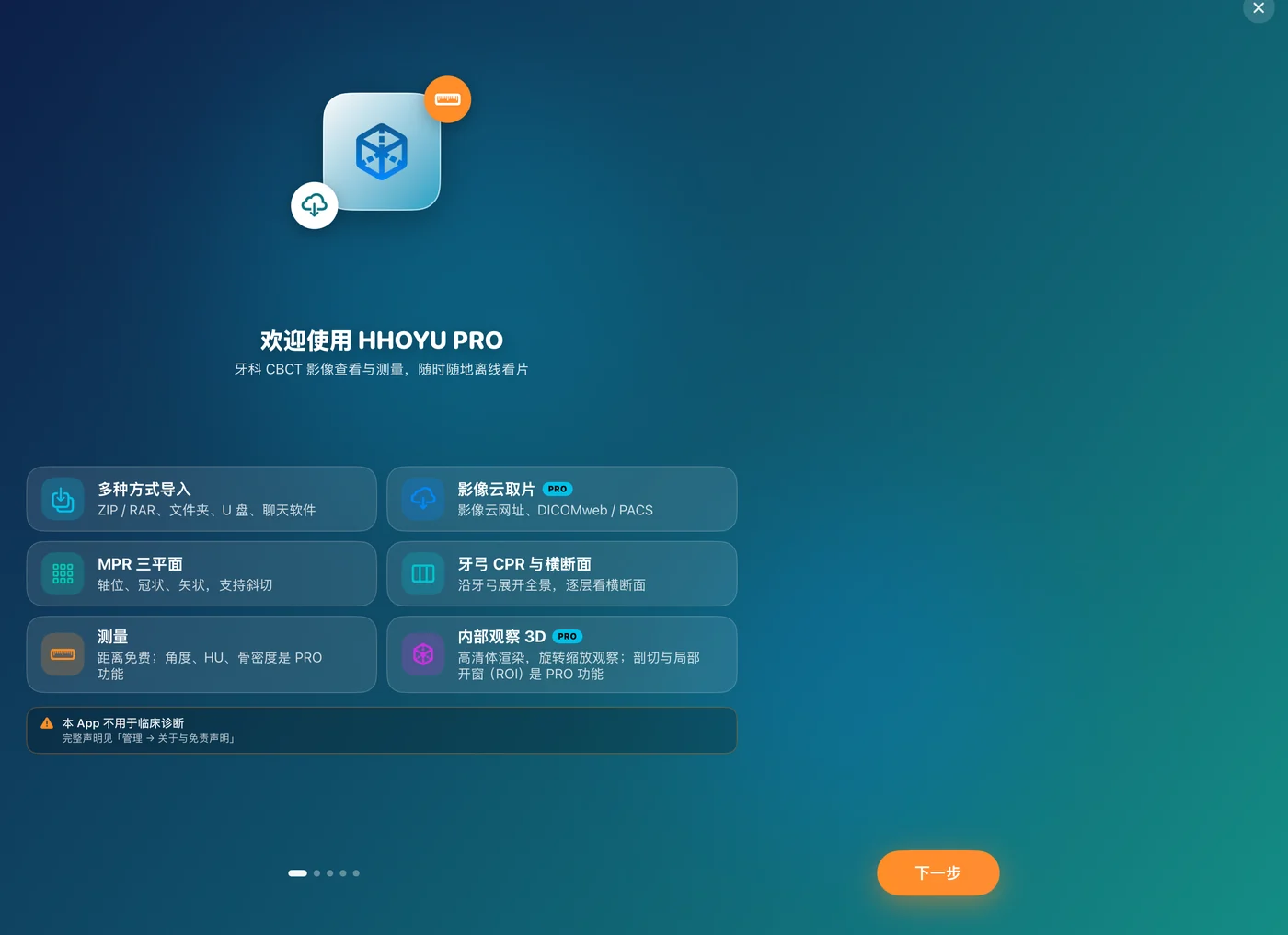
Bring scans in from chat apps, USB drives, Files, hospital services, DICOMweb and PACS. A ZIP or RAR you just received can be opened directly, without hunting for a workstation with special software.
HHOYU PRO · COMMUNICATION
Viewing is the entrance. Explaining the anatomy, sending the case and getting patient and peers to understand is what PRO is for.
GET · EXPLORE · COMMUNICATE
Access, understand, communicate — one workflow.
Bring scans in from chat apps, USB drives, Files, hospital services, DICOMweb and PACS. A ZIP or RAR you just received can be opened directly, without hunting for a workstation with special software.
Cutaway, implant position and AI segmentation — first for you, then for the patient and your peers.
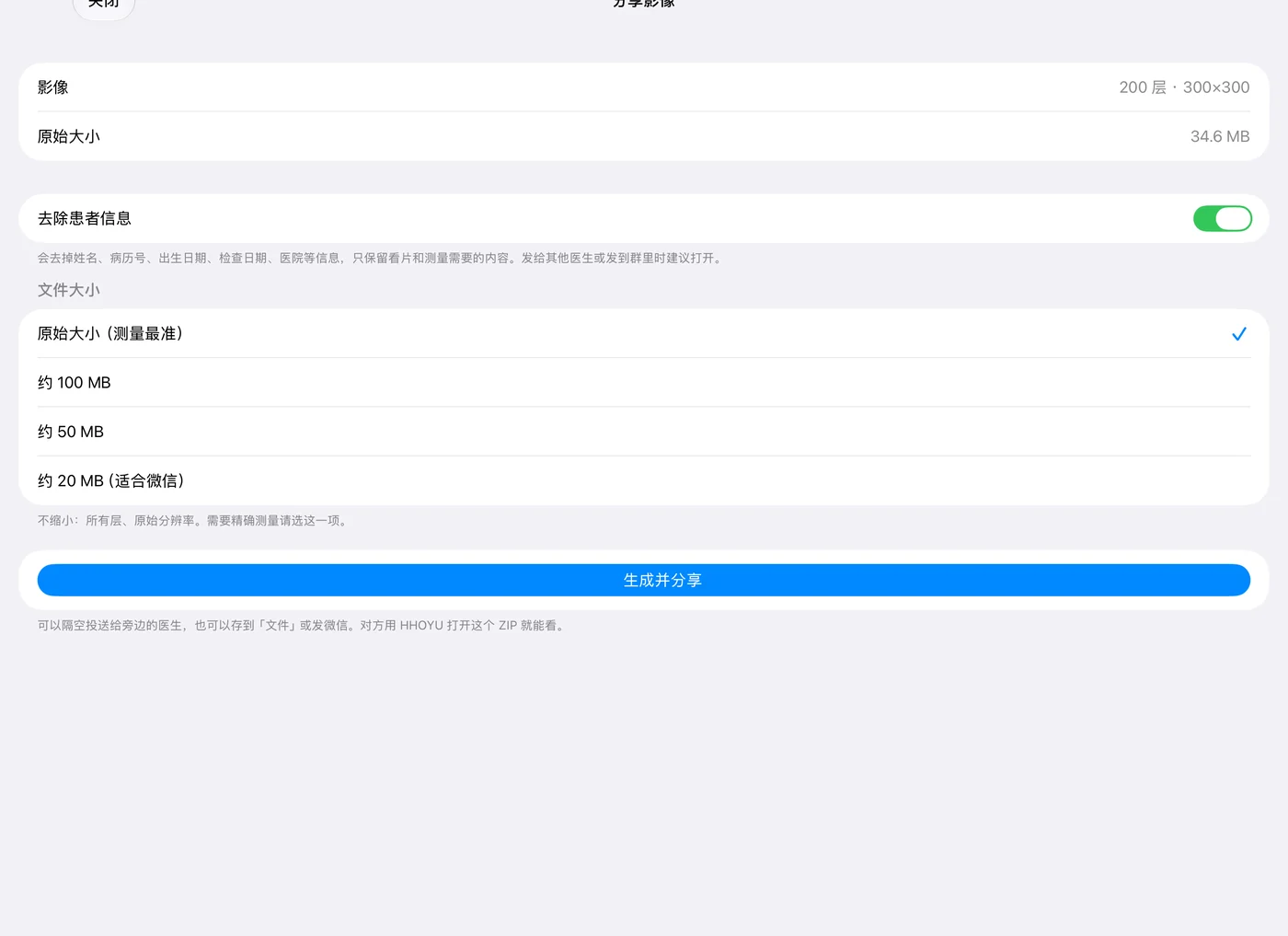
Run a privacy check, compress and hand the case to a colleague or patient through the system share sheet; open the same case on iPhone, iPad and Mac to keep discussing.
CONVERSATIONS
The case does not end at the desk; it goes to the patient, a peer, a remote colleague and a classroom.
Clinic · chairside
01Cut the jaw open on iPad and point to the anatomy so the patient can see what you are explaining.
3D cutaway · rotate and zoom · implant position illustration
Referral · review
02Run a privacy check, compress the case and send it to a colleague; they open it and keep reviewing.
Privacy check · compression · AirDrop / chat apps
Remote · multidisciplinary
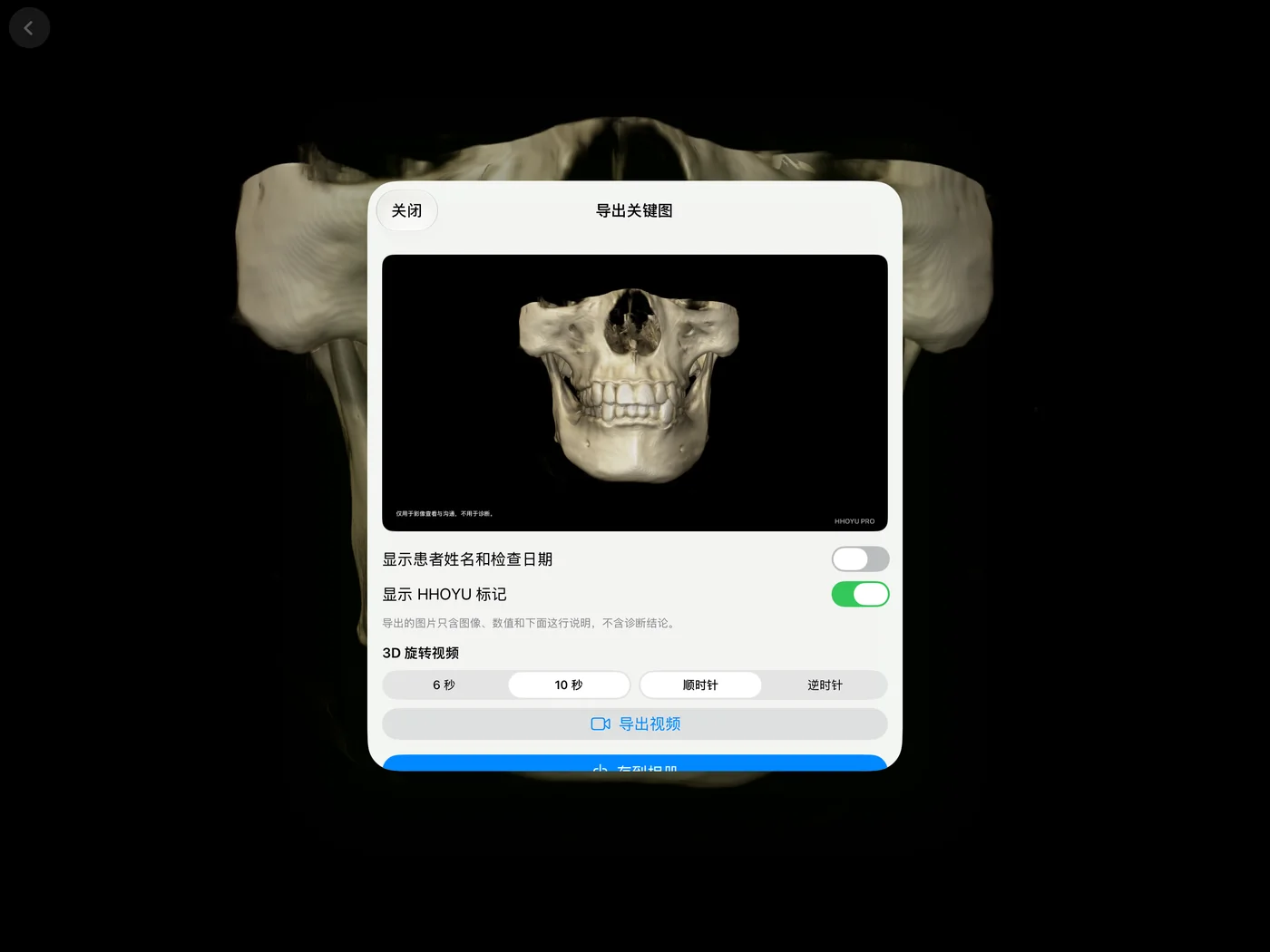
03Send key images, a 3D video or a compressed case to a remote clinician; they open it on their own device.
Key image / 3D video export · case file sharing
School · teaching hospital
04Use cutaways, the canal and internal bone structure as teaching material; reuse the case later.
3D cutaway · AI segmentation · case library
The four scenarios use different ways of sharing the same case: local presentation, a compressed file, key images/video or opening it on another device. There is no automatic cloud sync or real-time multi-user collaboration.
FROM REVIEW TO COMMUNICATION
Traditional DICOM viewers focus on opening, browsing and measuring. HHOYU PRO adds 3D structure, privacy handling and case sharing on top of that.
Traditional DICOM review
Built around opening, browsing and measuring.
HHOYU PRO
PROA workspace organised around the case conversation, on top of review.
Not a replacement for a traditional viewer — it picks up the communication work that starts after review.
MULTI-SOURCE IMPORT
No longer limited to a disc, a dedicated PC or a single transfer channel.
Receive the file
A ZIP, RAR or DICOM folder from chat, email or a USB drive.
Open with HHOYU PRO
Send it via the share sheet or “Open in”.
Recognise automatically
Unpack, detect series and assemble a case.
Ready in your library
Stored on device for offline access.
Receive a ZIP (RAR is PRO only) in WeChat or another chat app, choose “Open in” and hand it to the app. The archive is unpacked and added to your case library.
Read DICOM data from USB-C drives and external storage through the iOS file system. External storage is managed by the system — confirm the import has finished before unplugging.
Manage case files in the Files app, or open DICOM folders and archives directly from iCloud Drive.
Sign in to a verified hospital connection, or retrieve with a verification code issued by the hospital, then follow that service’s own download flow. Arbitrary hospital links cannot be parsed automatically.
PRO supports QIDO-RS query and WADO-RS retrieval. The hospital or imaging provider must expose an accessible endpoint and credentials. DICOMweb is included in the current paid release; the hospital or provider must expose an endpoint and credentials.
Configure a PACS node on the LAN, query and retrieve with C-FIND / C-GET / C-MOVE, and receive workstation pushes. Requires an address, AE title and permissions.
Hospital links, imaging portals and DICOMweb / PACS are three different access methods. They usually require an address, account or network access from the hospital; HHOYU cannot provision those on a hospital’s behalf.
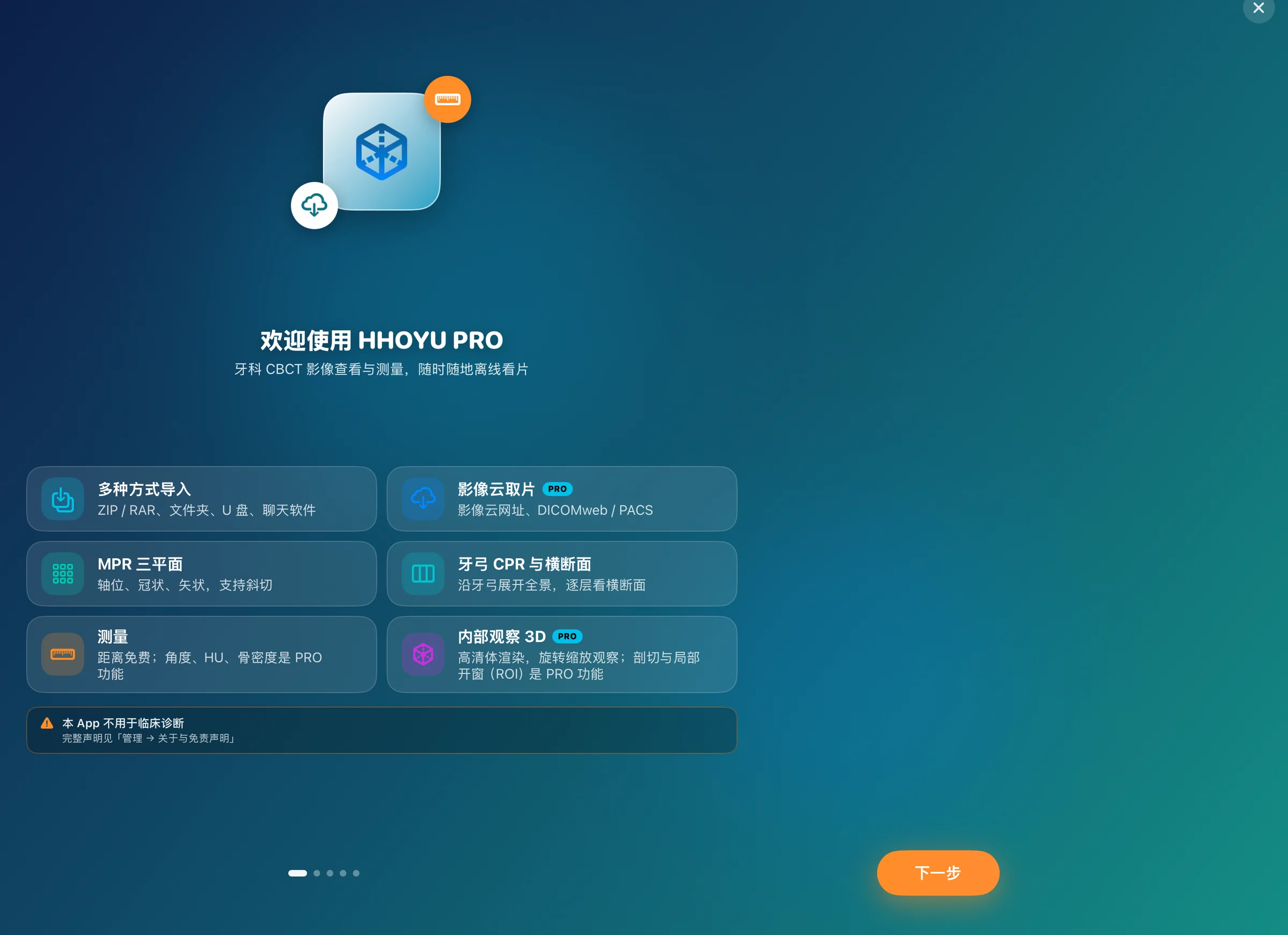
HHOYU PRO · import options
Explore imaging access3D IMAGING
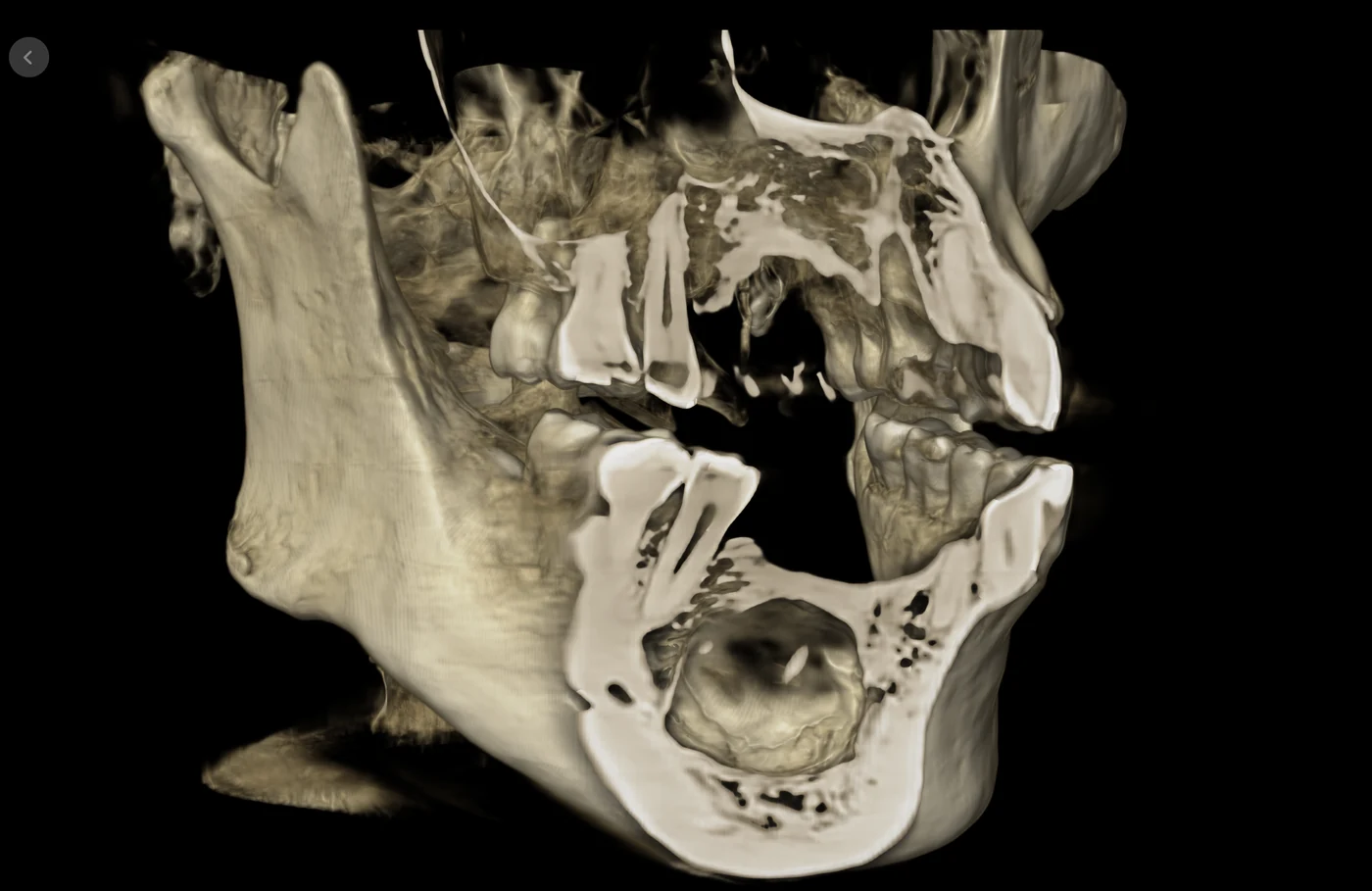
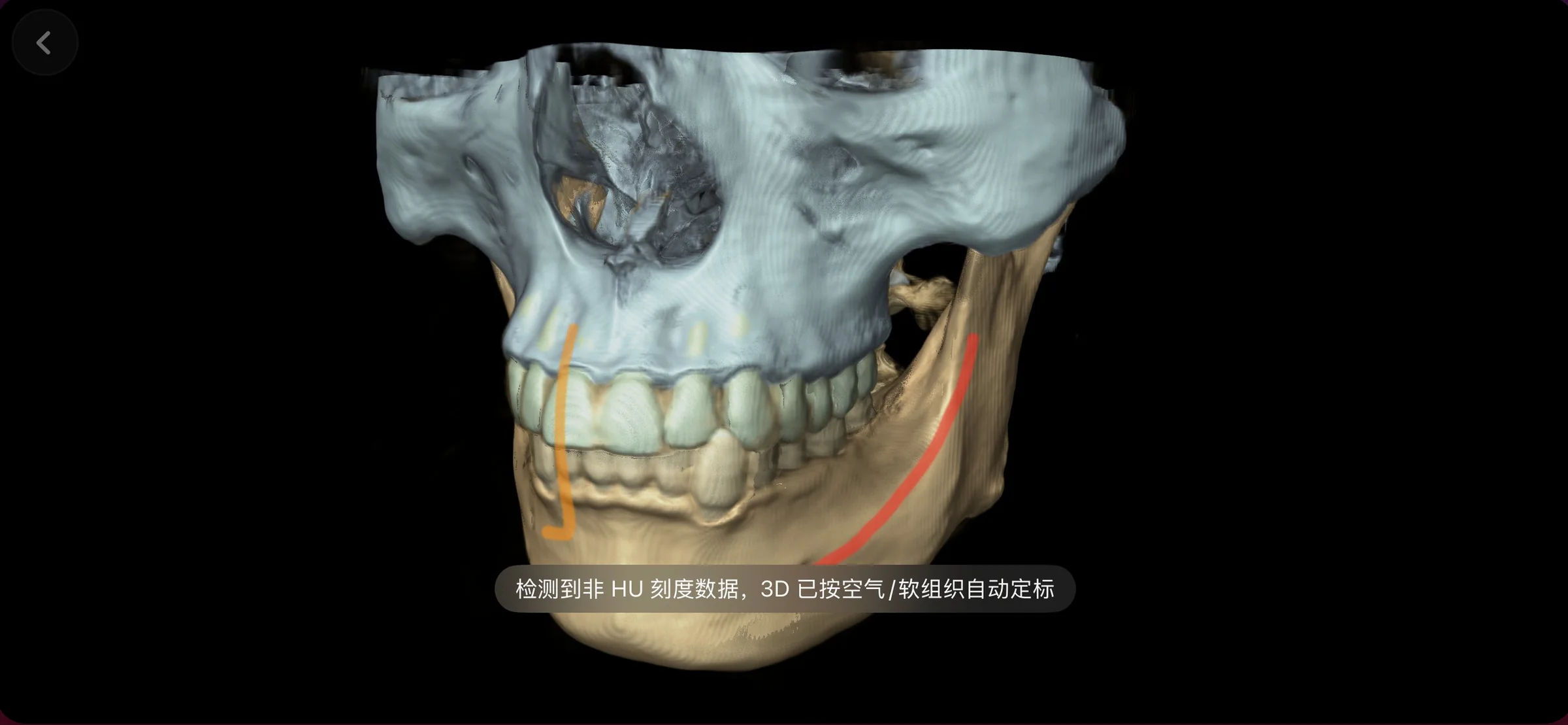
Volume rendering, cutaway in any direction and structure visualisation make the spatial relationship of the jaw and surrounding anatomy easier to grasp.
3D jaw surface rendering
Reconstruct the maxillofacial surface on device, rotate and zoom to build a spatial impression.
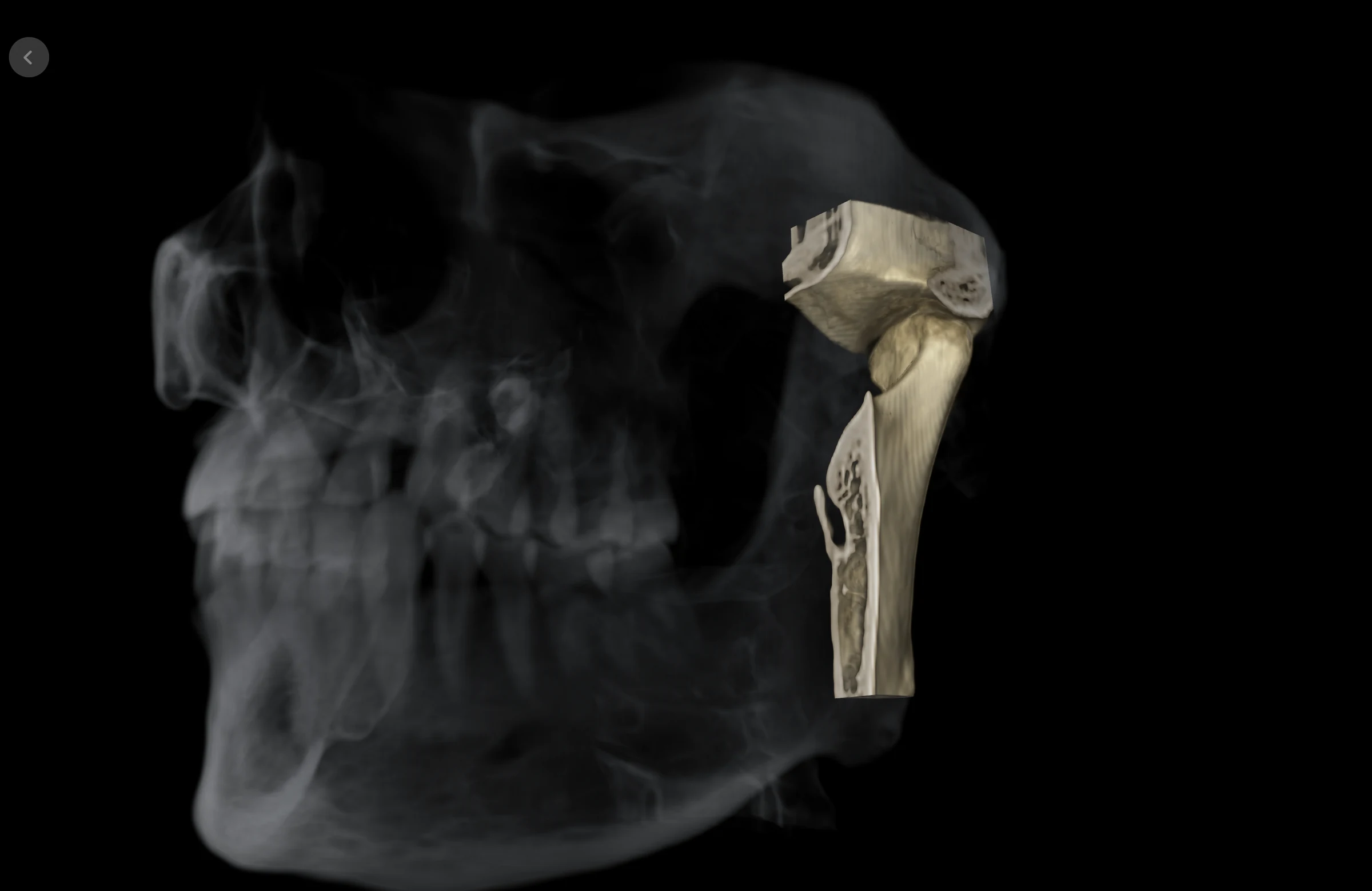
Cutaway in any direction
Open the jaw along an arbitrary plane to inspect cortical and cancellous bone.
Internal structure
Compare trabeculae, pulp cavities, the mandibular canal and impacted teeth in one view.
3D anatomical visualisation is for observation and communication. It is not a diagnosis.
THE VIEWER
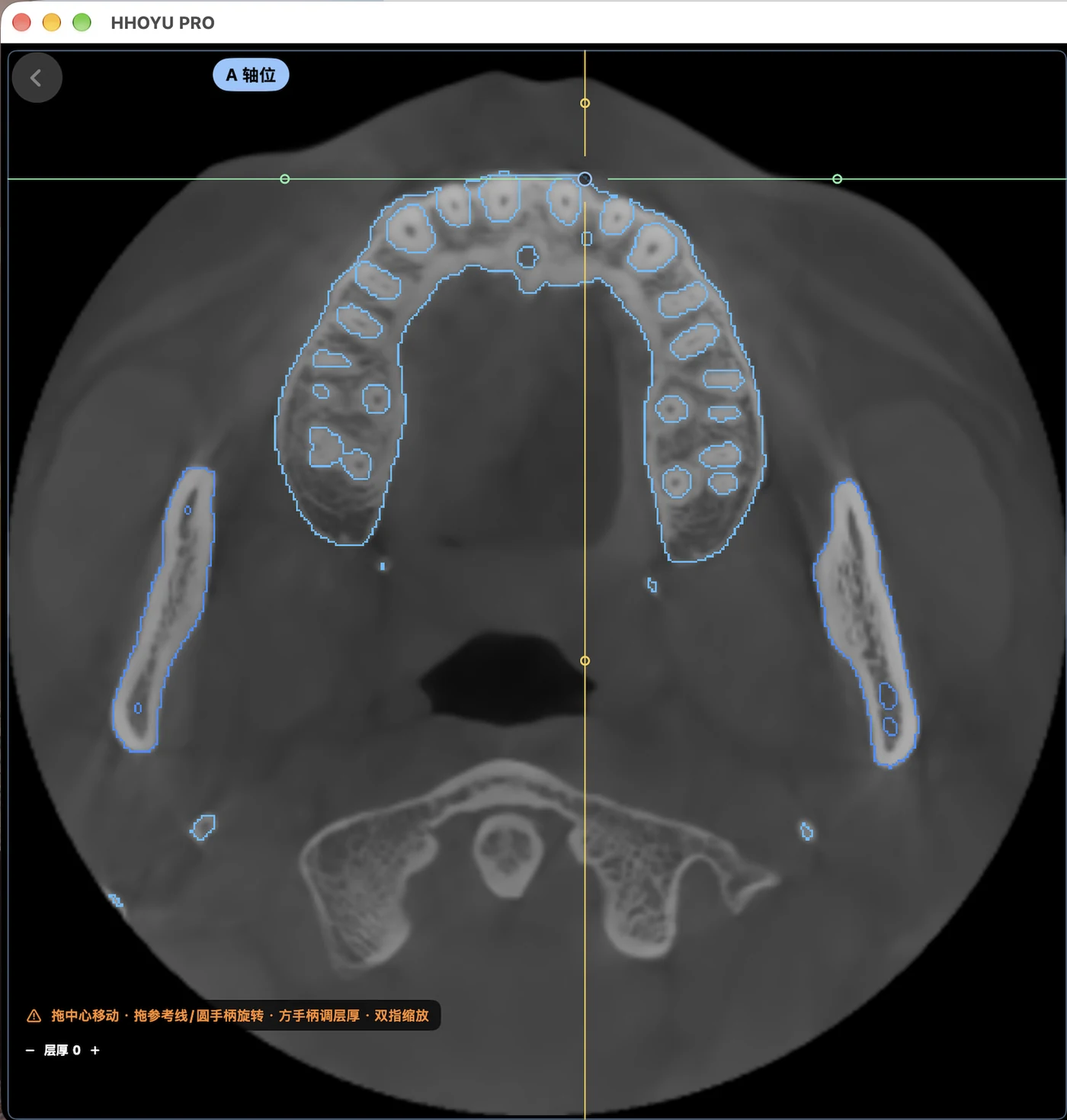
MPR, CPR, cutaway and ROI share one localisation model, so you do not lose your place when switching.
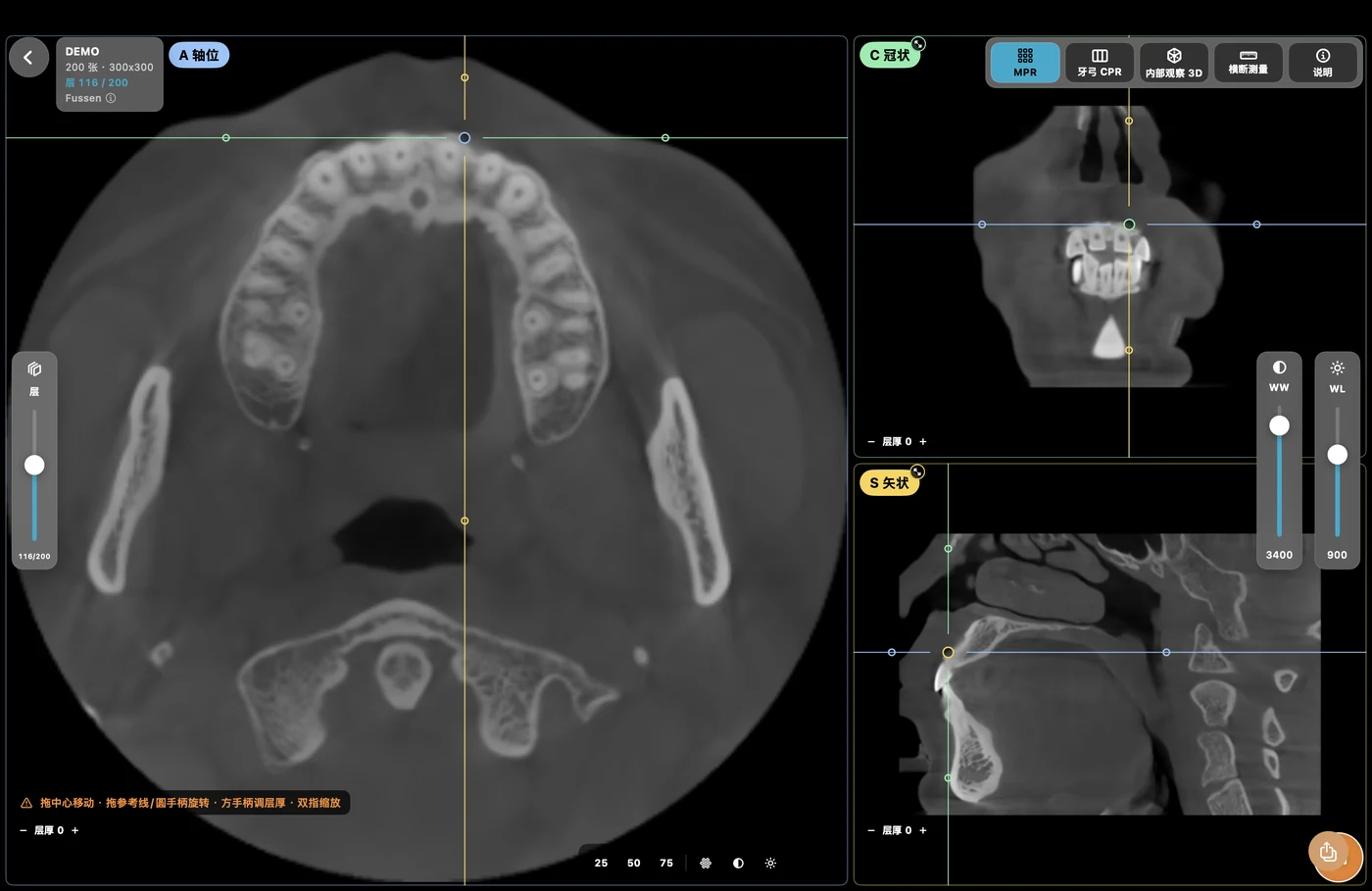
Linked axial, coronal and sagittal planes with oblique reformatting and slab thickness, so one anatomical point can be followed in a single view.
MPR, CPR and 3D surface viewing are available in both versions; cutaway and ROI are PRO.
IMPLANT POSITION ILLUSTRATION
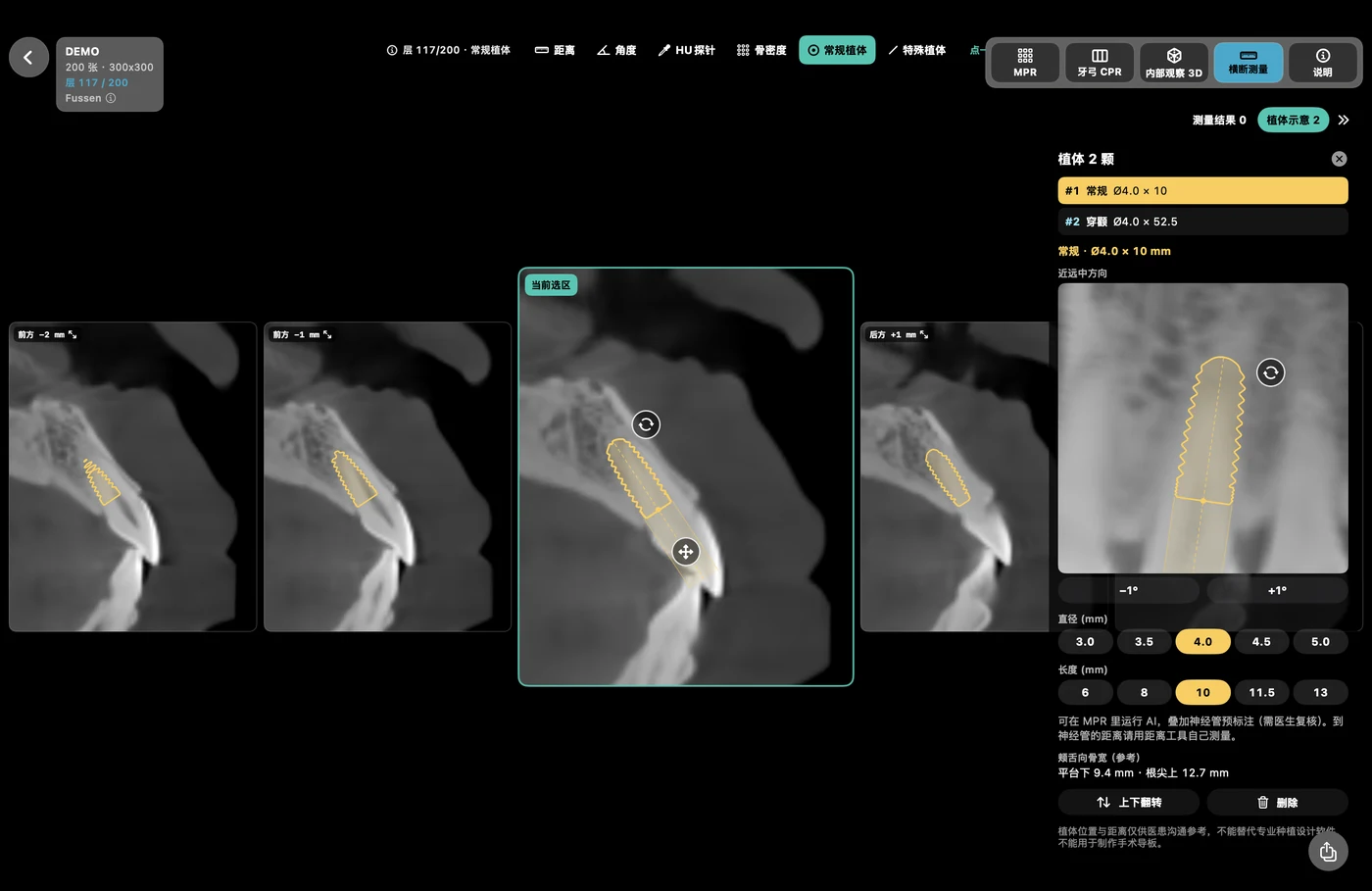
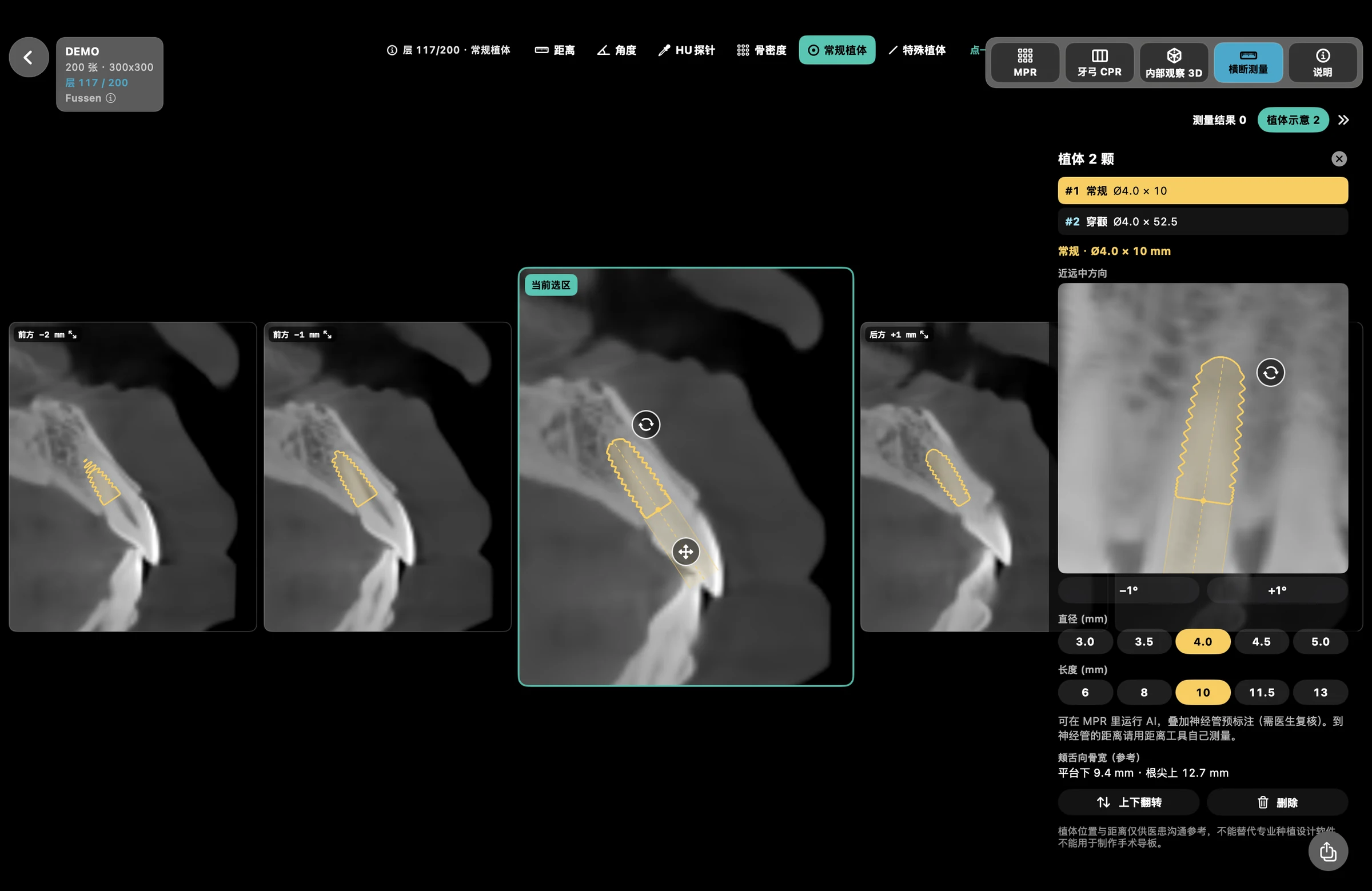
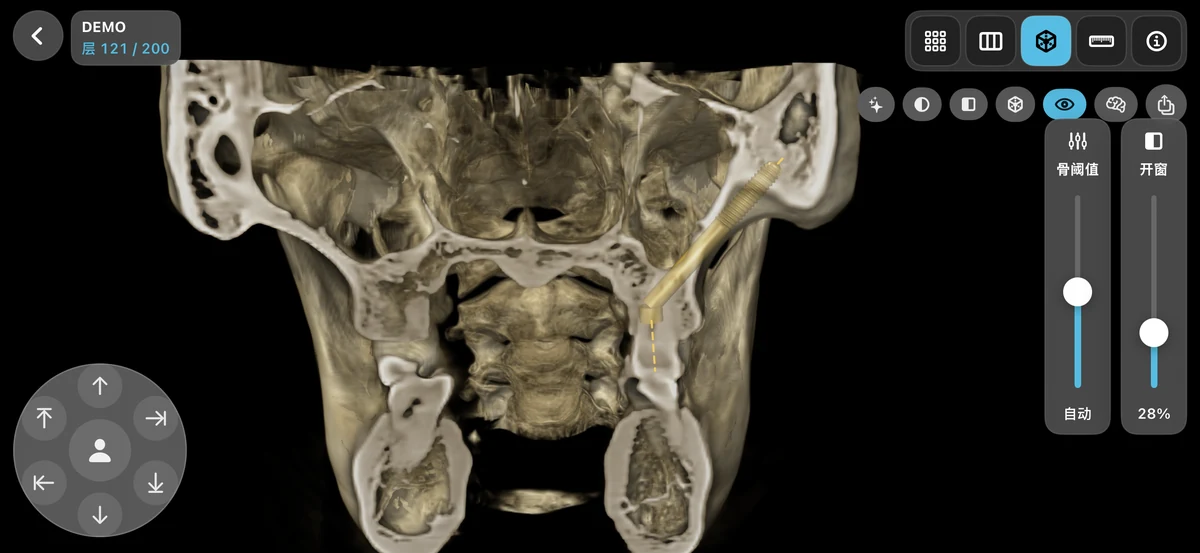
Use the 3D model and cross-sections to show how an implant model sits relative to the jaw, teeth and surrounding anatomy — for case presentation and clinician-patient communication.
Standard and special implants
Switch between standard and special implants in the toolbar; the demo case shows a standard implant and a zygomatic implant (Ø4.0 × 52.5).
Adjust the model
Drag and rotate in the cross-section, fine-tune by ±1° and flip; the 3D view follows.
Distance reference
Distance to the canal and buccolingual bone width are shown for communication; parameters and limits follow the current version.
Implant position and distance are for drawing-based communication only. They do not replace professional implant planning software and must not be used to make surgical guides.
SAME CASE · 3D
Standard and zygomatic implants in the same case, checked against bone walls, sinus and canal.
TEACHING
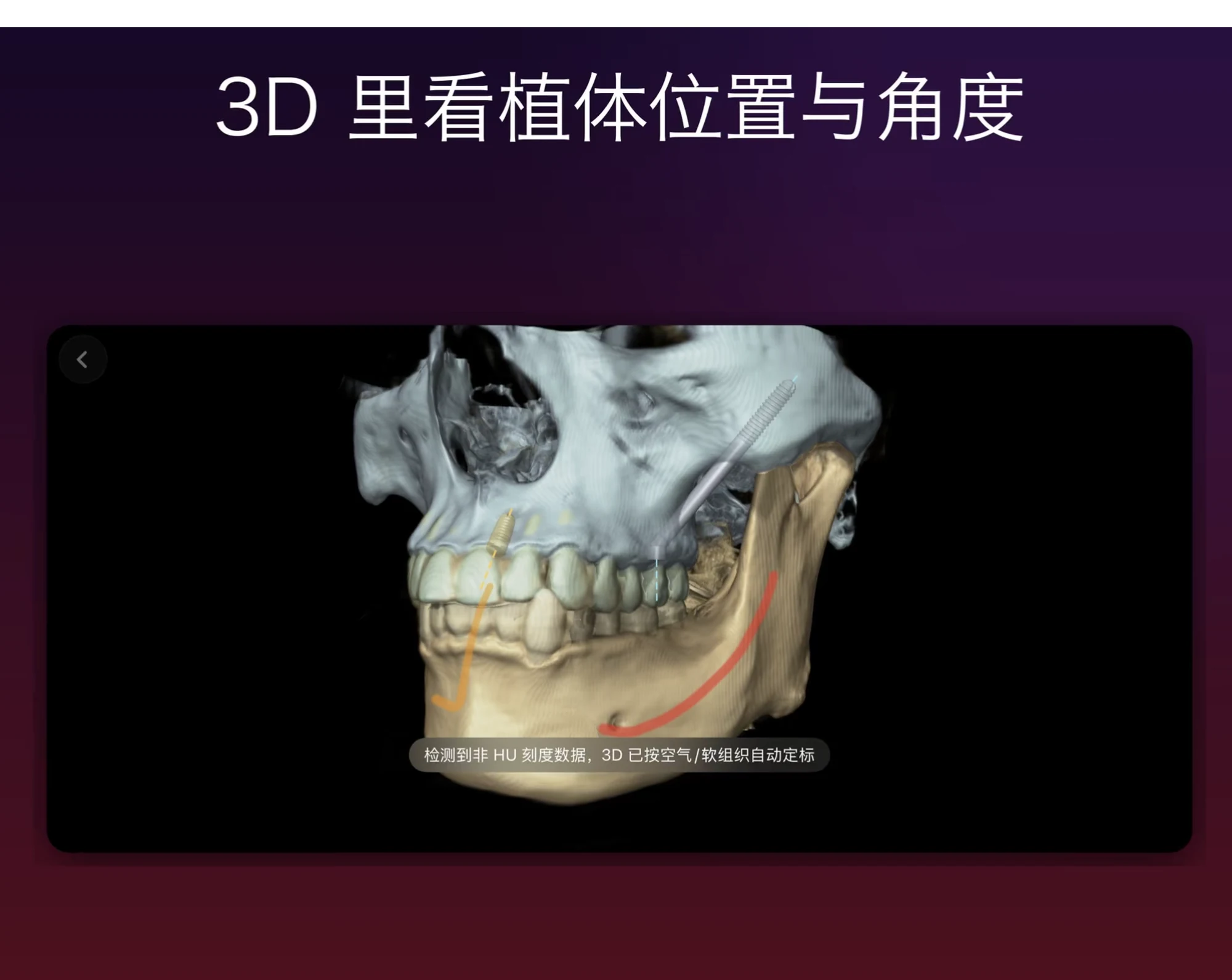
Cut, rotate, pick the angle, then export key images or a 3D video; the same case can be taught again in a department meeting, a classroom or a live session.
Lesson material
Export key images and 3D video directly, without screenshots and re-alignment.
Reuse the case
The case library keeps the original data, so any view can be reopened later.
Explain at any depth
Use the same anatomy for a patient, a student or a peer.
The sample slide was made by a clinician from 3D imagery exported with HHOYU PRO.
AI-ASSISTED SEGMENTATION
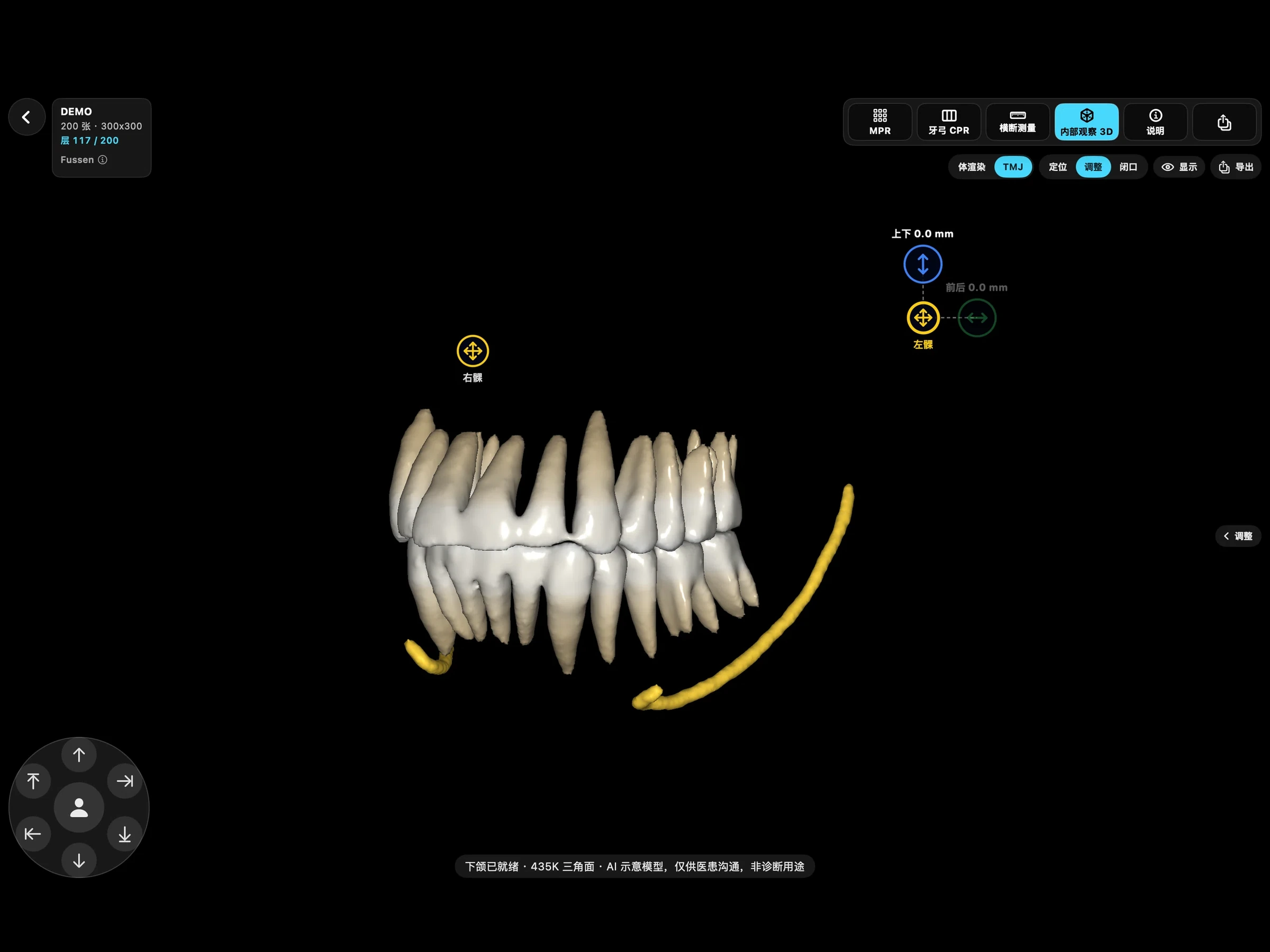
An on-device neural network segments the maxilla, mandible, dentition and mandibular canal, and colours them in the 3D view.
On-device compute
The model runs locally. Scans are not uploaded to a cloud service.
Maxilla, mandible, dentition
Use the result as a starting point for 3D review and spend less time tracing by hand.
Mandibular canal
The left and right mandibular canals are labelled separately so their path can be compared in 3D.
~10 s
AI-assisted segmentation
On supported devices and typical cases; actual time depends on device, volume size and runtime conditions.
Available in the PRO version; requires a device with sufficient memory.
AI-assisted segmentation provides anatomical reference only. It is not a diagnosis, and results must be reviewed by a clinician. Processing is typically in the order of ten seconds, but varies with device model, volume size and runtime conditions.
PRIVACY & SHARING
A share copy, DICOM field cleanup and compression make cases easier to use for clinician-patient communication, peer discussion and teaching.
Open the case
Pick the study you want to share from the case library.
Choose the range
Select the images to include.
Privacy check
Turn on “Remove patient information” and keep only what viewing and measurement need.
Compress
Choose the original size or a compressed copy of about 100 / 50 / 20 MB.
Choose a channel
Create a ZIP, then send it through the system share sheet, AirDrop or a chat app; HHOYU does not relay it through a cloud.
Done
The shared file is a copy; the original stays untouched.
With de-identification on, HHOYU PRO rebuilds a DICOM share copy from a whitelist: the patient name becomes ANONYMOUS and the patient ID becomes a random number; birth date, study date, institution and study description are omitted; private tags and sequences (SQ) are dropped; study, series and image UIDs are regenerated.
This is field-level de-identification, not full anonymisation, and it is not a compliance certification. Confirm the image content and the recipient before sharing externally.
APPLE ACROSS DEVICES
One HHOYU PRO, arranged by screen size; case files do not sync automatically.
A larger canvas for MPR, 3D cutaway and case explanation — chairside and peer review.
Receive and open a case anywhere, review slices and 3D in landscape, and hand the screen to a patient chairside.
Runs as an iPad app on Apple silicon Macs for desk review, organisation and remote discussion; the App Store marks it “Designed for iPad. Not verified for macOS.”
HHOYU PRO is a free download. Base, Pro and the PACS access pack are one-time in-app purchases; prices and cross-device entitlements follow the App Store listing. The Mac version runs as an iPad app and is marked not verified for macOS; case files do not sync automatically.
View the App Store listingFREE DOWNLOAD · ONE-TIME UNLOCKS
Download free for CBCT viewing, MPR and basic measurements. Base, Pro and the PACS access pack are one-time in-app purchases; prices follow the App Store in your region.
Price
Shown on the App Store
HHOYU PRO is a free download; in-app purchase prices and supported devices follow the App Store listing. Current version: 1.1.3.
HHOYU PRO is not a medical device and is not intended for clinical diagnosis.
Current official version: 1.1.3. New capabilities ship with release notes.
FAQ
These answers match HHOYU PRO official version 1.1.3 and the current purchase model.
A cross-device imaging tool for dental CBCT: bring DICOM data in from several sources, review it in 2D and 3D on iPhone, iPad and Mac, and handle patient information before sharing. It is neither a plain DICOM viewer nor diagnostic software.
Download free to view CBCT, MPR / CPR and basic measurements. Base unlocks 3D cutaway / ROI, angle and HU, unlimited measurements and watermark-free export; Pro adds AI, TMJ, implants, bone density and cloud fetch; the PACS access pack adds DICOMweb / PACS / hospital links. All are one-time purchases with no subscription.
If you only scroll slices and measure for yourself, a standalone viewer is enough. HHOYU PRO covers the next part: explaining 3D anatomy to a patient, sending a privacy-checked case to a peer, and continuing the discussion remotely or in class. You pay for a complete workflow and communication efficiency, not just viewing.
A standard viewer focuses on opening, browsing and measuring. HHOYU PRO connects multi-channel access, 3D review, AI-assisted segmentation, privacy handling and sharing into one flow, with specific handling for the dental arch, jaw and canal.
The focus is dental CBCT DICOM series, and it also supports common DICOM data whose modality is CT / CBCT. Vendor, transfer syntax, slice thickness, multi-series and reconstruction settings can differ, so confirm with an actual import. Non-CT/CBCT modalities are skipped. ZIP and RAR archives, DICOM folders and single .dcm files are supported.
Yes. Open the archive from a chat app or Files, choose “Open with” → HHOYU PRO, and the app unpacks and recognises the DICOM series.
Yes. DICOM files on a USB drive or external disk can be read through the iOS file system. External storage is managed by the system; do not disconnect until the import finishes.
Yes. Configure a PACS node on the local network for C-FIND / C-GET / C-MOVE retrieval, and receive workstation pushes (C-STORE SCP). The hospital must provide the address, AE Title and access rights.
Yes. DICOMweb QIDO-RS search and WADO-RS retrieval are supported; the hospital or imaging service must provide an accessible endpoint and credentials.
Yes. Open the file in the chat app and choose “Open with” → HHOYU PRO; ZIP, RAR or DICOM files enter the import flow. The app does not integrate the WeChat SDK and does not read your chats.
With de-identification on, the app rebuilds the share copy from a whitelist: patient name becomes ANONYMOUS and patient ID becomes a random number; birth date, study date, institution and study description are omitted; private tags and sequences (SQ) are dropped; study, series and image UIDs are regenerated. This is field-level handling: text, annotations or overlays burned into pixels are not removed, and full anonymisation is not guaranteed.
Unpacking, review, 3D processing, AI and share-copy generation run on device. When you use a hospital service, DICOMweb or PACS, the app connects only to the server you enter. Once sent through AirDrop, WeChat or another system channel, transfer and retention follow that service; HHOYU does not receive the images.
It supports iPhone and iPad in landscape. Apple silicon Macs can run the iPad app; the App Store marks it “Designed for iPad. Not verified for macOS.” Check the App Store listing for supported devices and OS requirements.
HHOYU PRO is one App Store listing. Cross-device entitlements are subject to the confirmed Universal Purchase configuration and the App Store listing. The Mac version runs as an iPad app and is marked not verified for macOS; case files do not sync automatically.
Find HHOYU PRO on the App Store, or use the App Store link on this site. After purchase, sign in with the same Apple ID and re-download it from your purchased items. Price and supported devices follow the App Store listing.
No. Current official version 1.1.3 does not include Mesh; it is validated in the AI build and planned for a later release. It is not part of the current purchase, and timing, final form and pricing follow the release notes.
HHOYU Mobile is a separate paid app for everyday CBCT review and measurement. It is a separate product from HHOYU PRO; each app has its own price, entitlements and purchase flow.
No. HHOYU PRO is not a medical device and is not intended for clinical diagnosis. Reconstruction, AI-assisted segmentation and measurements are for review, communication, teaching and demonstration; clinical decisions must be made by qualified professionals.
Download HHOYU PRO free and take the case to your patient, your peers and your class.
iPhone · iPad · Mac · Free on the App Store