
IMAGING ACCESS
Wherever the image is, the workflow starts there.
Five common sources, each with its own prerequisites. Here is what works and what it needs.
MULTI-SOURCE IMPORT
Wherever your CT is, HHOYU PRO can receive it.
No longer limited to a disc, a dedicated PC or a single transfer channel.
- 01
Receive the file
A ZIP, RAR or DICOM folder from chat, email or a USB drive.
- 02
Open with HHOYU PRO
Send it via the share sheet or “Open in”.
- 03
Recognise automatically
Unpack, detect series and assemble a case.
- 04
Ready in your library
Stored on device for offline access.
From chat apps
IncludedReceive a ZIP (RAR is PRO only) in WeChat or another chat app, choose “Open in” and hand it to the app. The archive is unpacked and added to your case library.
USB drives and local files
IncludedRead DICOM data from USB-C drives and external storage through the iOS file system. External storage is managed by the system — confirm the import has finished before unplugging.
iCloud Drive and Files
IncludedManage case files in the Files app, or open DICOM folders and archives directly from iCloud Drive.
Hospital imaging portals
IncludedSign in to a verified hospital connection, or retrieve with a verification code issued by the hospital, then follow that service’s own download flow. Arbitrary hospital links cannot be parsed automatically.
DICOMweb
IncludedPRO supports QIDO-RS query and WADO-RS retrieval. The hospital or imaging provider must expose an accessible endpoint and credentials. DICOMweb is included in the current paid release; the hospital or provider must expose an endpoint and credentials.
PACS direct
IncludedConfigure a PACS node on the LAN, query and retrieve with C-FIND / C-GET / C-MOVE, and receive workstation pushes. Requires an address, AE title and permissions.
Hospital links, imaging portals and DICOMweb / PACS are three different access methods. They usually require an address, account or network access from the hospital; HHOYU cannot provision those on a hospital’s behalf.
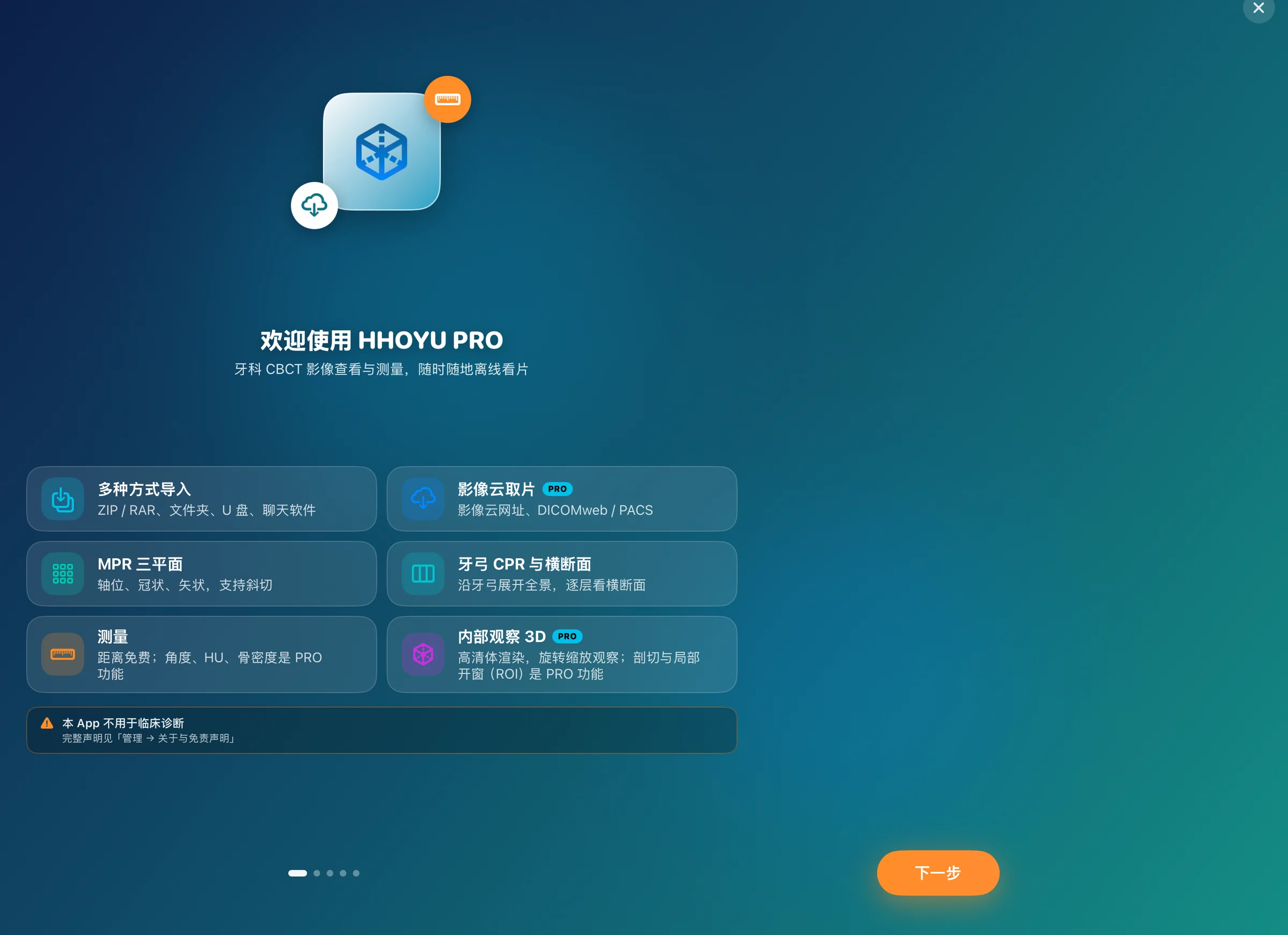
HHOYU PRO · import options
Explore imaging accessHow each route works
Three remote routes, three different requirements.
Hospital links, imaging portals and DICOMweb / PACS have different boundaries. When one does not work, the app is often not the cause.
Hospital connection / verification code
IncludedSign in to a verified hospital connection, or retrieve with a verification code issued by the hospital. Page changes may require adaptation.
DICOMweb
PROQuery with QIDO-RS and retrieve with WADO-RS; the provider must expose an accessible DICOMweb endpoint.
PACS
IncludedConfigure a PACS node on the LAN, query and retrieve with C-FIND / C-GET / C-MOVE, and receive workstation pushes. Requires an address, AE title and permissions.
Before using remote retrieval, confirm
- iOS / iPadOS 18.0 or later
- iPhone and iPad are used in landscape
- 3D cutaway, ROI and AI segmentation need sufficient memory (around 8 GB or more)
- Remote retrieval requires a reachable address and credentials from the hospital or imaging provider
Hospital links, imaging portals and DICOMweb / PACS are three different access methods. They usually require an address, account or network access from the hospital; HHOYU cannot provision those on a hospital’s behalf.
Make the next CBCT a conversation that lands.
Download HHOYU PRO free and take the case to your patient, your peers and your class.
iPhone · iPad · Mac · Free on the App Store